Seating is the decision teachers get most complaints about and least often have a defensible answer for. A student who sat at the back alone for a term has a real grievance, and “they were just sitting where they always sit” is not an answer to it.
A random seating chart gives you an answer that survives the conversation, because nobody chose it.
Building a Chart
Add your students — one name per line, typed or pasted. There is also an auto-fill by count if you need a placeholder roster for testing the layout.
Set the layout — number of rows, and how many students sit at each bench: one or two. This is worth thinking about rather than defaulting. A single desk per bench suits individual work; paired desks suit anything collaborative, and pairing changes who works with whom far more often than it first appears.
Pick an arrangement. Three options: Mixed rows (purely random), Separate (girls and boys in their own row blocks), or Alternate (girls and boys paired across the room).
Assign seats — the chart builds itself. Reassign reshuffles whenever you are not satisfied.
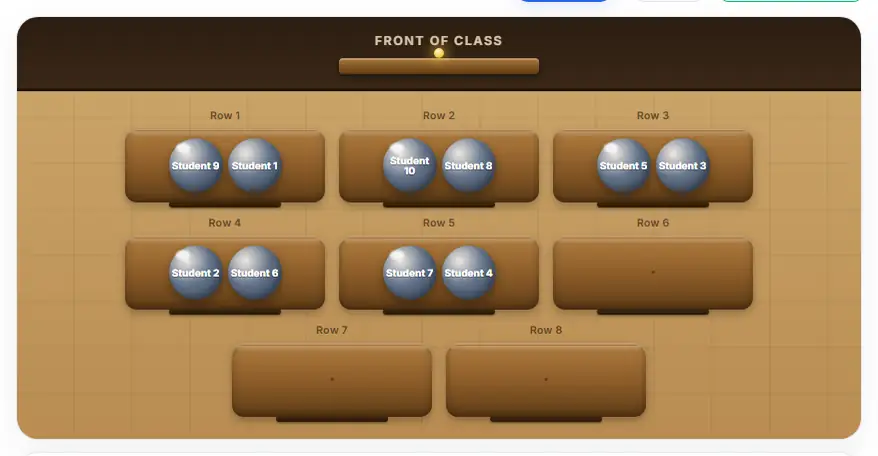
What Gender-Aware Modes Actually Do
Worth being precise, because these are sometimes understood as something they are not.
To use them, tap a student’s name and mark them as a girl or boy before assigning. Then:
- Separate places them in their own row blocks — girls toward the front of their block, boys toward the back of theirs
- Alternate pairs them across the room, so adjacent students differ
Neither mode assigns anyone by name or by anything you did not record. Both are still random within the constraint. If you mark two students the same way, the draw between them is exactly as random as any other.
And unmarked students are simply treated as one category. If you only marked half the class, the result will be a mixture of constrained and unconstrained rows, which is rarely what anyone intended — so mark everyone or mark no one.
There is a real question here worth deciding deliberately rather than avoiding. Separate and alternate arrangements are straightforwardly worse as a response to disengagement than rotating seating is, because they attach a visible label to where somebody sits. Rotation is the stronger default. These modes exist for classrooms where a specific arrangement is required, not as a general engagement strategy.
Saving the Roster
Re-typing thirty names every time is what kills this practice after a week.
- Save List stores the full class list including the gender markers
- Load List restores it exactly as you set it, ready to edit
- Fill with AI generates a sample roster when you need to test a layout
Storing the markers is what makes reuse worthwhile — otherwise you are re-marking everyone each time, which takes longer than typing.
Rotation Is the Actual Practice
One random chart is a novelty. The version that lasts a term is a rotation.
Reassign on a fixed cycle. Weekly or fortnightly, tied to something visible. The trigger matters more than the interval: “every Monday” is a rotation, “sometime this week” is a gesture.
Always announce what happens next. State whether people keep their new seats for the week or whether it changes again. Deciding mid-lesson is what produces the “do it again, that wasn’t fair” loop.
Watch for the two failure modes. Students who dislike moving, and students who have found a seat arrangement they like. The second is the harder problem — a student who has worked out how to sit near the front on reading days will exploit any schedule you can see. Rotating on an unannounced-but-regular cycle makes that harder without becoming punitive.
Do not rotate for disruption’s sake. If a seating change provokes a fight twice, leave it. The practice is worth having available, not worth forcing.
Where It Helps Most
New term. Start fresh and save each class roster separately.
Exams. Seat students apart from their usual neighbours. The random version is the one nobody can dispute as being targeted.
Group work. Seating determines who works with whom for the whole lesson, which makes it one of the highest-leverage decisions in the room and one you otherwise make by accumulation rather than on purpose.
Substitute cover. A saved roster means the supply teacher can produce a seating chart in under a minute instead of guessing. This is the single most practical reason to save the list.
After a reshuffle. When something has gone wrong socially, a random arrangement resolves it without anyone having to be told what happened.
The Mistakes
Building it live. Typing thirty names while thirty students wait spends the moment you were trying to use. Prepare the roster beforehand — saved lists exist for this.
Not checking the arrangement before announcing it. With gender-aware modes in particular, read the resulting chart before it becomes public. A layout you did not intend is much harder to walk back than one you caught in time.
Announcing it as a punishment. Framing a random arrangement as something imposed produces exactly the resentment randomisation is meant to remove.
Forgetting a student. Verify the entry count against your roster before assigning. Once the chart exists, adding someone means reassigning everyone.
Mixing marked and unmarked. If half the class has gender markers and half does not, the layout will not be what you expect.
What Is Actually Random Here
The assignment uses a cryptographic random source rather than Math.random(), which is deterministic and can in principle be reconstructed to anticipate results. The fairness page covers it.
The practical point is smaller than the technical one: when a student asks why they are in that seat, there is no answer other than “it was drawn”, and that answer is true.
Start With One Chart
Save your class list first — that is the step that makes this sustainable. Then produce a chart, walk through it before the lesson, and re-run it on a fixed day for a month.
The first two weeks nobody comments. In week three, someone will ask whether it is going to stay, which means it is working.