Every random selection tool on RandomSelect.net shares one component: the list toolbar. Master it and you stop retyping rosters — a class list you build once works in the wheel on Monday, the group maker on Wednesday, and the scoreboard on Friday.
There are four ways to fill a list, and they differ sharply in how much time they cost you at 8am with 34 students waiting.
The Four Ways to Build a List
| Method | Best for | Time for 30 names |
|---|---|---|
| Type or paste | Lists you already have as text | ~2 min |
| AI generation | Topic lists you need from scratch | ~15 sec |
| Photo import | Handwritten rosters, name-tag photos | ~40 sec |
| Saved list | Anything you’ve built before | ~5 sec |
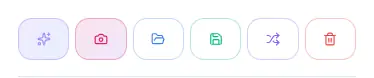
That toolbar sits above the entry box on every list-based tool. From left to right: AI, Photo, Save, Load, Shuffle, Clear.
Method 1: AI Generation
The purple sparkle button opens a prompt box. Describe what you need in plain language and the list fills itself.
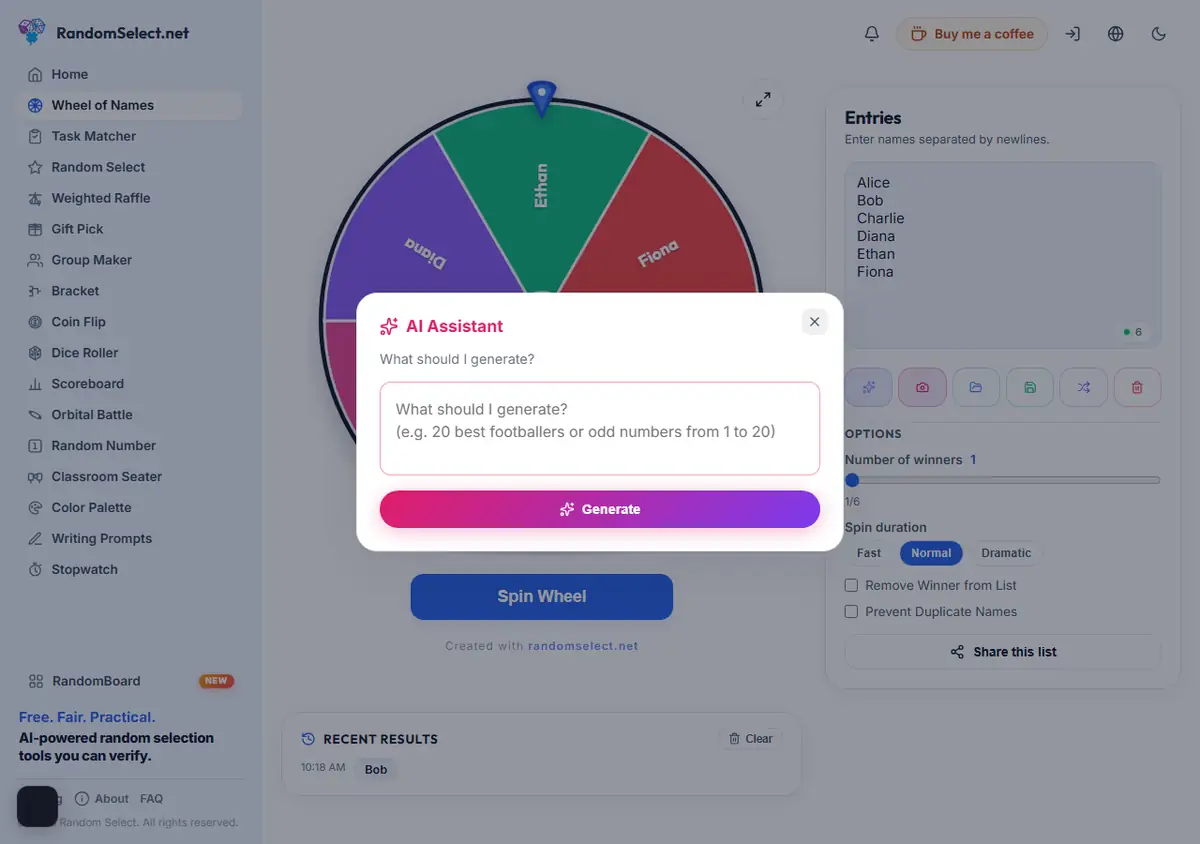
Prompts That Work Well
Specific counts produce specific lists. Vague prompts produce vague results.
Good:
- “The 20 largest cities in the world”
- “15 Turkish dishes”
- “25 Olympic sports”
- “10 team building activities for remote work”
Weak:
- “cities”
- “some foods”
What It’s Good For
- Starting a demo when you have no real participants yet
- Brainstorming names or topics you wouldn’t have thought of
- Building teaching material — vocabulary lists, question banks, categories
What It’s Not Good For
Don’t use AI to invent participants in a real contest. Participants must be the people who actually entered. Using generated names in a giveaway is how you end up disqualifying it.
Limits Worth Knowing
AI generation has a daily free allowance. When you hit it, the button tells you — it doesn’t silently fail or hand you a truncated list.
Method 2: Photo Import
The pink camera button is the feature competitors don’t have. Photograph a roster and the text comes out as a list.
How It Works
- Tap the camera button
- Capture with camera or upload from the gallery
- The AI reads the names and fills the list
What to Photograph Well
Image quality decides the output. These rules cover most failures:
- Fill the frame — the list should occupy most of the photo
- Even lighting — no shadow across the names, no glare
- Straight-on angle — shoot parallel to the paper, not tilted
- One column if possible — multi-column layouts confuse column detection
Real Cases This Handles
- A handwritten class list on paper
- A screenshot of a spreadsheet or a WhatsApp group member list
- Name tags from a group photo at an event
When It Gets It Wrong
It will occasionally misread a character — l for 1, O for 0. Always read the result before drawing. A wrong name in a fair draw is still a wrong outcome.
Method 3: Type, Paste, and Import
The reliable baseline. Click into the entry box and:
- Type one name per line
- Paste from anywhere — Excel, Sheets, a document
- Import a
.txtor.csvfile with the folder button
The One-Line-Per-Item Rule
The parser splits on newlines. Pasting a comma-separated row produces one entry reading "Smith, John" instead of two people.
If you’re coming from a spreadsheet, convert to one-per-line first. In Excel: select the column, Data → Text to Columns → Delimited → Next → Finish.
Useful Tricks
- Emoji prefixes —
🌟 Ayşe,🚀 Mehmetmake lists easier to scan and help younger students recognize their own name - Duplicate removal — the “Prevent Duplicate Names” option filters repeats automatically
- Trailing whitespace — copy-paste often adds spaces; the parser trims them, but check visually if a name looks off
Method 4: Save and Reuse
This is the one that compounds. Every list you build is an asset you never rebuild.
Saving
While signed in, hit the green save button, give the list a name that you’ll recognize later — “Grade 7-B”, “Spring Sprint Team”, “Giveaway Pool October” — and it’s stored in the cloud.
Loading
The blue folder button lists everything you’ve saved. Hovering shows a preview of the first four names, so you can confirm the right list without opening it. One click loads it into the current tool.
The Real Power
One list, many tools. Save a class roster once:
- Monday — wheel picks the student who answers
- Wednesday — group maker splits them into project teams
- Friday — lucky draw picks the presenters
Nobody retypes anything. And because the list is saved rather than typed, one typo fixed on Monday doesn’t need fixing everywhere.
Shuffle and Clear
Two small controls that get overlooked.
Shuffle (purple arrows) randomizes the current order in place. Useful before a group assignment so the first name isn’t always whoever you typed first — a subtle fairness win, since order-based setups otherwise bias toward whoever got entered first.
Clear (red bin) empties the list in one click. Undo isn’t available, so save first if the list was worth keeping.
What Happens to Your List
Worth being explicit, because people assume the worst:
- Lists live in your browser’s session storage. Refresh and they’re still there; close the tab and they’re gone unless you saved them.
- Saved lists are tied to your account.
- Photos and AI requests are processed to extract text, then discarded. They aren’t stored on the server.
- Anonymous use works fully — you just can’t save across devices.
Picking a Method in Two Seconds
- Got the names as text? Paste it.
- Names exist only on paper? Photograph it, then verify.
- Need a topic list to demo with? Ask the AI.
- Built something like this before? Load the saved list.
Once your roster is ready, the tool itself is one click: spin the Wheel of Names, run the Lucky Draw, or split into teams with the Group Maker.
RandomSelect.net — build the list once, use it everywhere.